
Docs / Appointments & Calendar
Appointments & Calendar
The Schedule workspace is the primary place to book, view, and manage patient appointments.
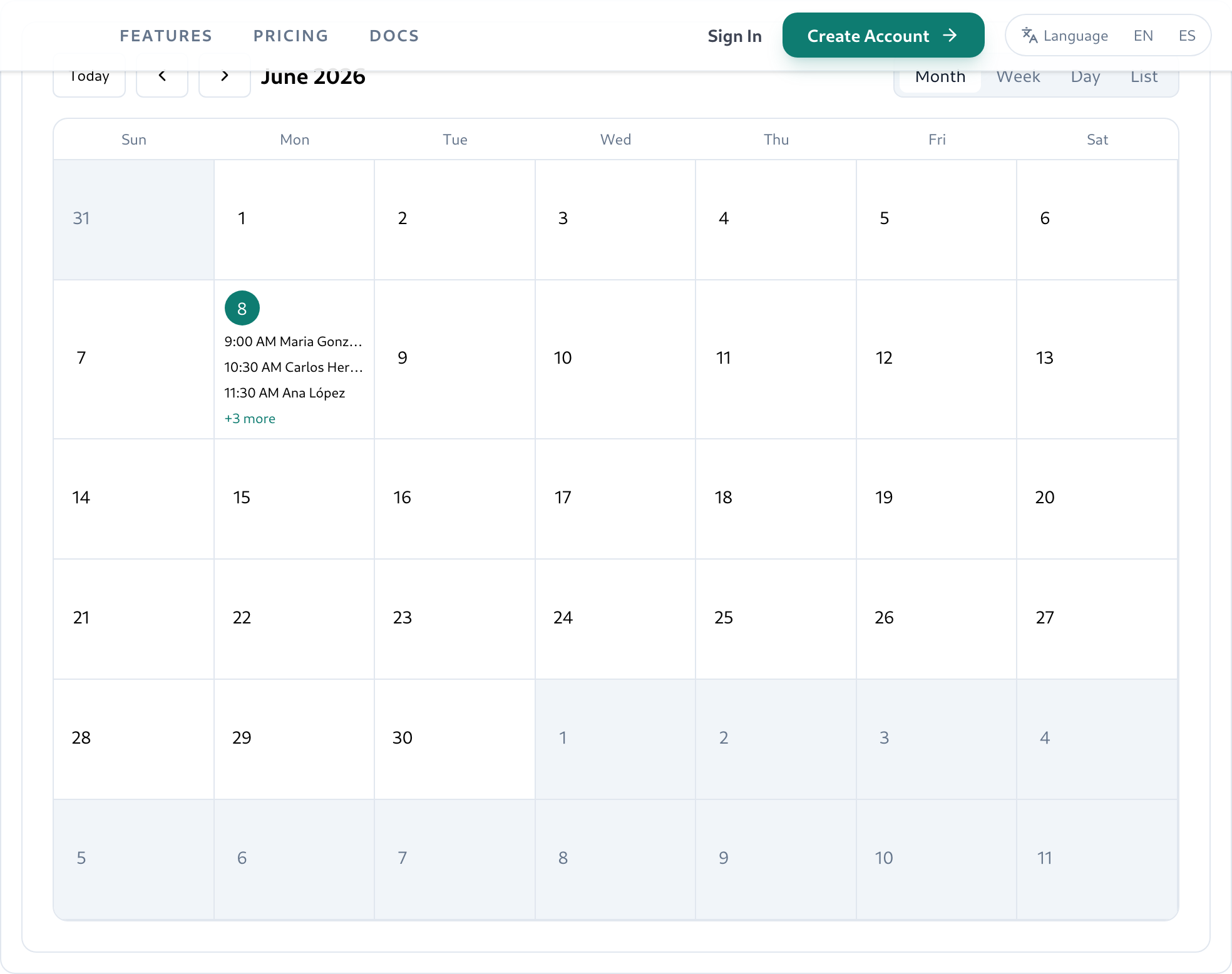
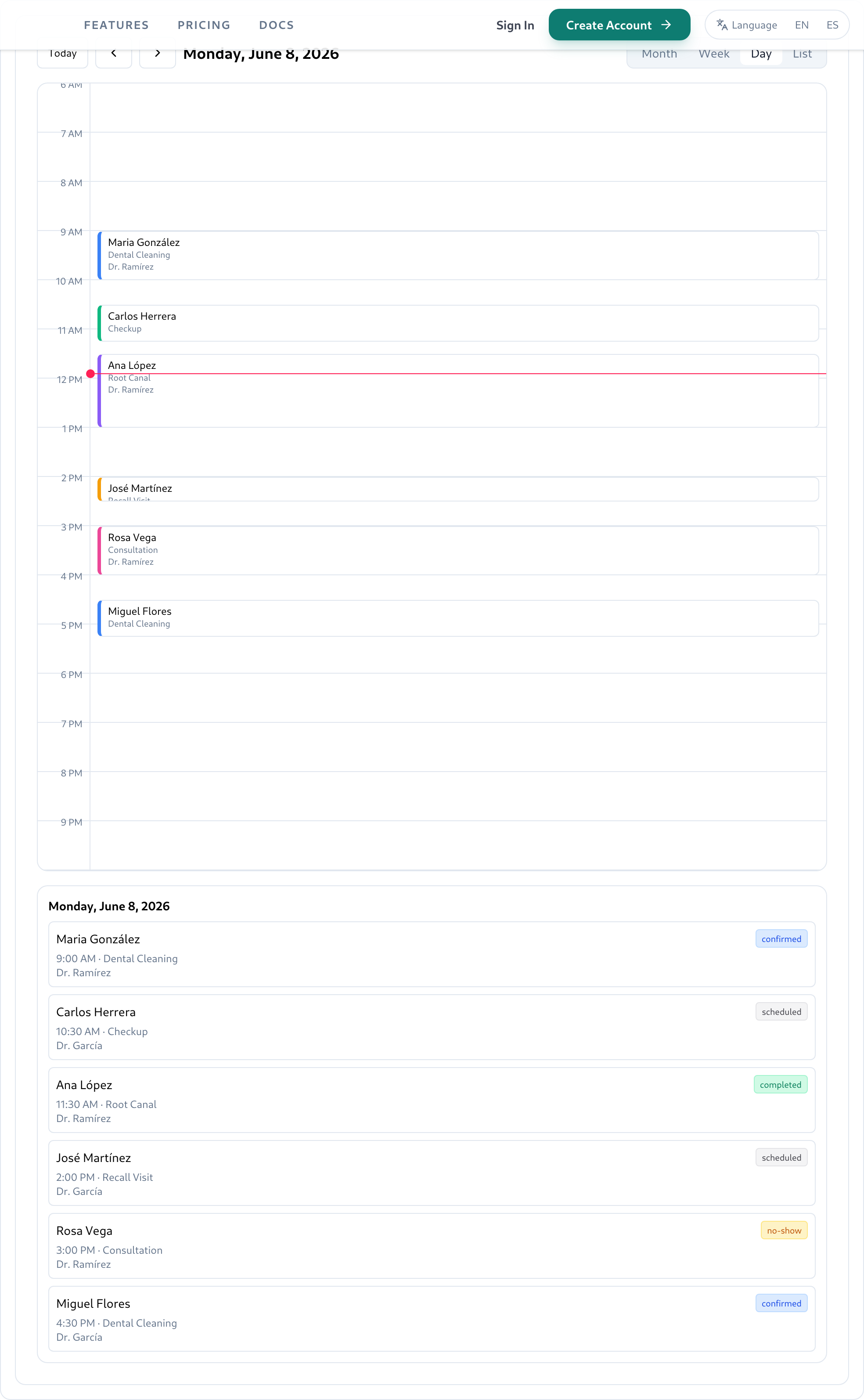
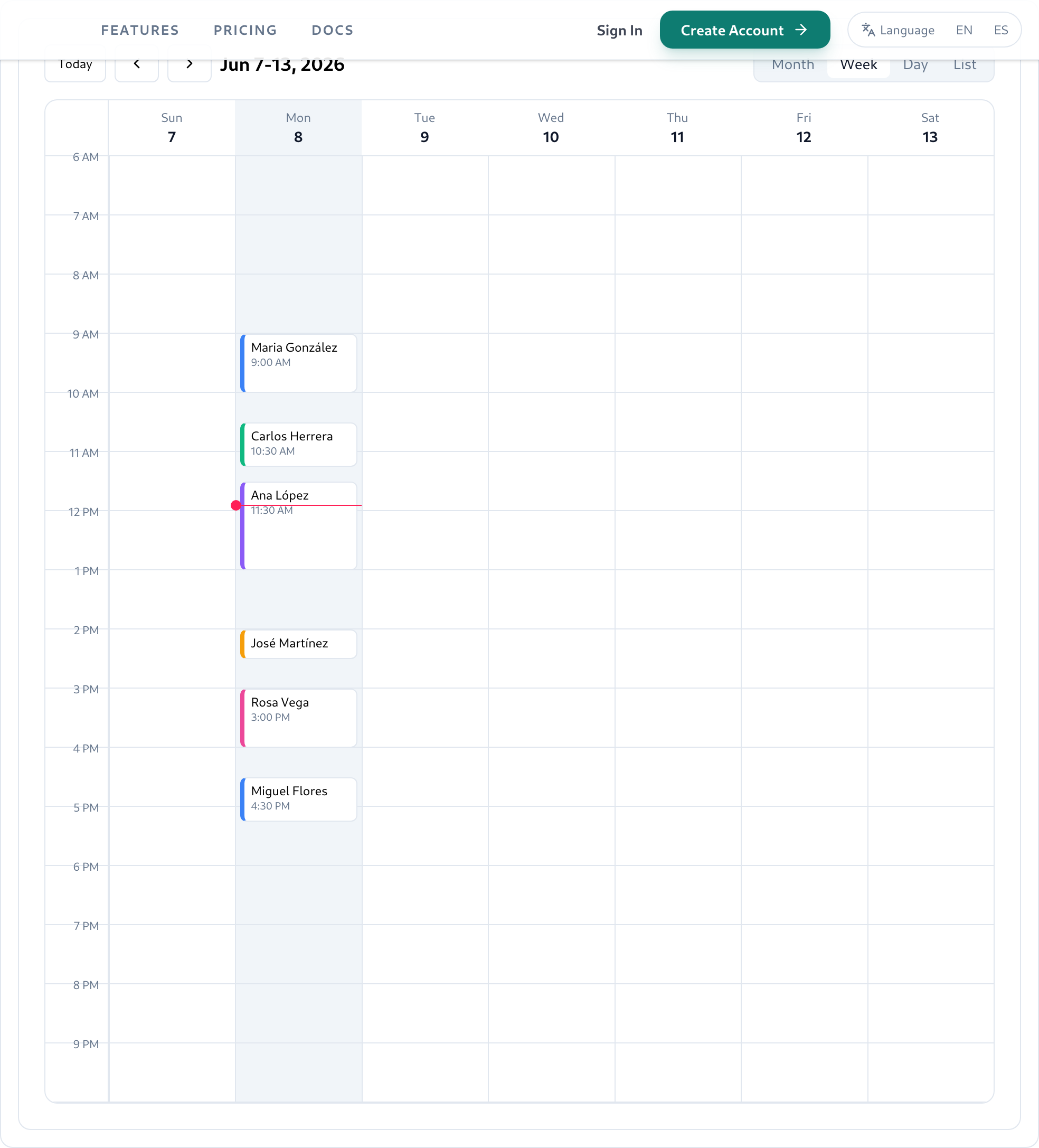
Calendar views
Switch between four views using the toolbar at the top of the calendar:
| View | Best for |
|---|---|
| Month | Capacity planning and no-show patterns across weeks |
| Week | Day-by-day scheduling and provider workload balance |
| Day | Tight intra-day slot management and walk-in coordination |
| List | Searchable chronological list, great for front-desk use |
Booking an appointment
- 1.In the Schedule workspace, click Schedule appointment in the Appointments card (or the + button in the calendar toolbar).
- 2.Select a Patient from the dropdown. If the patient doesn't exist yet, click Add patient first.
- 3.Select a Provider. Only providers assigned to your current location will appear.
- 4.Choose the Appointment Type (e.g., Checkup, Cleaning, Extraction, Whitening).
- 5.Set the date and time and the duration in minutes.
- 6.Click Confirm appointment. If there's a conflict, Genkō will block the save and show the overlapping appointment.
Appointment statuses
Each appointment moves through a lifecycle. Staff can update status from the calendar or the list view.
ScheduledDefault state after booking. Appointment is on the calendar but not yet confirmed.
ConfirmedPatient has confirmed attendance (phone, email, or in-person check-in).
CompletedAppointment took place. Used for recall and no-show rate calculations.
CancelledPatient or practice cancelled. Slot freed on the calendar.
No-showPatient did not attend. Counted in no-show rate KPI and triggers recall eligibility.
RescheduledOriginal slot was moved. Original record is marked rescheduled; new record is Scheduled.
Tip: Mark no-shows promptly. The no-show rate KPI updates in real time and is visible on the Analytics dashboard.
Conflict detection
Genkō uses a database-level exclusion constraint to prevent double-booking the same provider at the same time. If you attempt to schedule an appointment that overlaps with an existing one, the save will be blocked and you'll see the conflicting appointment highlighted. Resolve conflicts by adjusting the time, provider, or duration.
Continue
- Patients & Recalls → Automate follow-up with recall campaigns
- Analytics → Measure your no-show rate and trends